
Install AIOS in a few easy steps
Follow each step in the order it's listed.
AIOS can only be installed on a desktop or laptop. It cannot be installed on a phone or tablet.
On a phone right now? Send yourself the link and pick this up at your desk. Nothing is lost.
aios.chiragshahcoaching.com
Before you get started, you need
- A Claude subscription, Pro or higher. Paid to Anthropic, not CSC.
- The Claude desktop app. Download the Claude desktop app
- A Google account. AIOS runs on Gmail, Google Calendar and Google Drive.
- Your completed Constitution.
Get your Constitution
Finish it before you start the install. Claude asks for it partway through and stops until it has it.
What is the Constitution, and how do I fill it in?
It is a document that tells Claude who you are, how you work, and what matters in your business. Claude reads it before it writes anything for you, so what comes back sounds like you. There are no right or wrong answers.
Two things that help. Answer the questions in sections rather than all at once. And if you want to move faster, upload the document to Claude and ask it to walk you through the questions, then ask it to hand you back a finished copy at the end.
How do I install the Claude desktop app?
Walk through it in this short video, or follow the steps underneath it.
Click the download button above. Open the file it downloads. Sign in with the email you use for Claude. When you see a message box, the app is ready.
What if I don't use a Google account or Google Workspace?
AIOS is built to run on Google. If you use another workspace, like Outlook or Yahoo, please contact your Coaching Success Manager for next steps.
Installation steps
Follow each step in order.
Prepare your project
Haven't installed the Claude desktop app yet? Download it first.
- Open the Claude desktop app.
- Create a new Project and name it AIOS.
- Switch from Chat to Cowork. The switch is in the bottom left of the message box.
- In the model picker next to the message box, choose Opus 5.
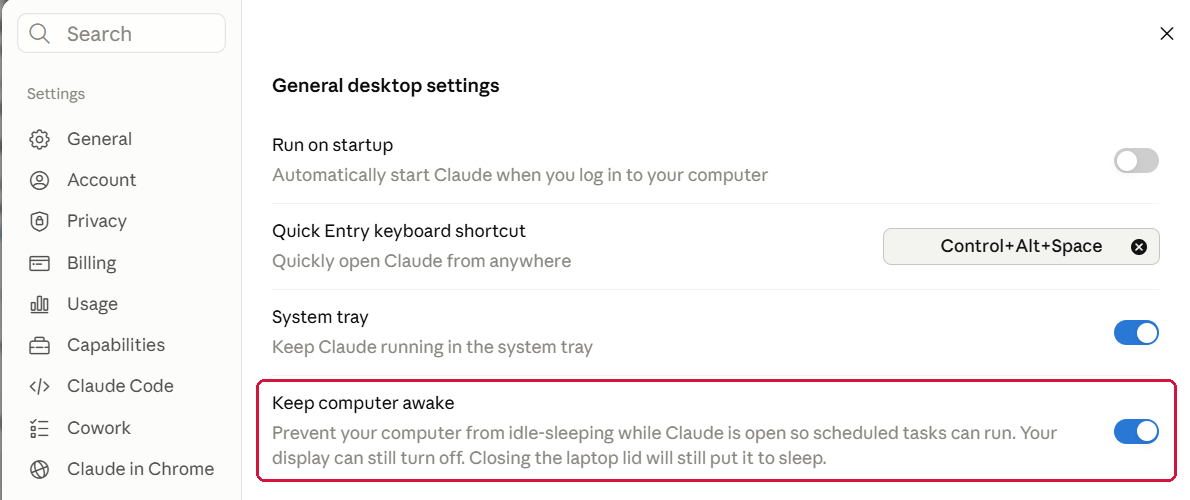
- Turn on Keep computer awake, under Settings, then Desktop app, then General. If your computer sleeps, your morning brief will not run. Your screen can still go dark.
Show me how
Find Projects in the panel down the left side of Claude.
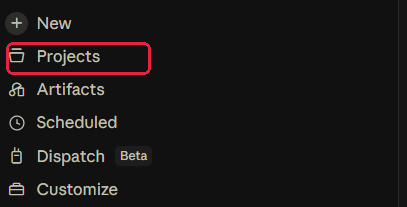
The New project button is at the top right of the Projects screen.

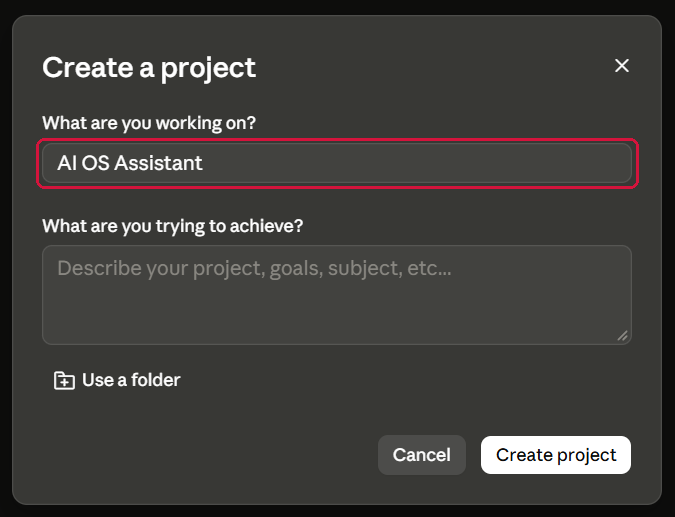
Name the project AIOS, then click Create project. Spelling matters here.
The Cowork switch is in the bottom left of the message box.

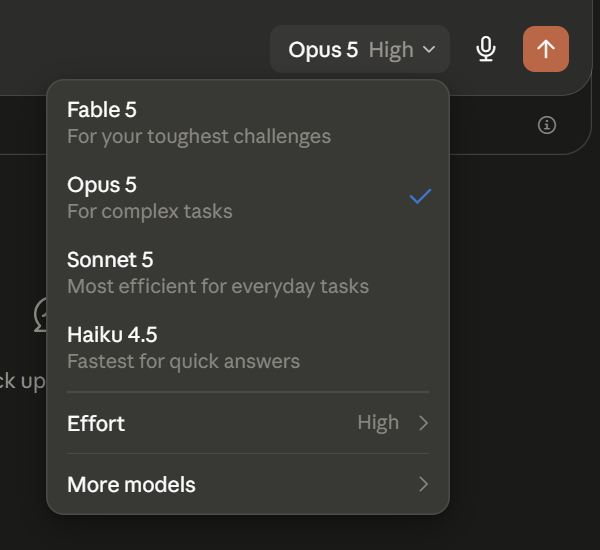
The model picker is on the right of the same message box, not in the Project settings. Choose Opus 5.
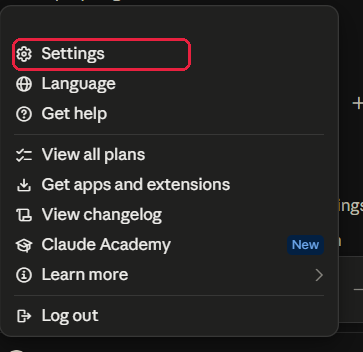
Click your account at the bottom of the left panel, then Settings.
Go to General under Desktop app, then turn on Keep computer awake so the switch is blue.
Create and attach a folder to your project
This is the one that stops the install working, so do not skip it.
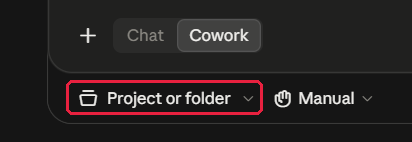
- Click Project or folder under the chat box.
- Click Add a folder.
- Click your Desktop.
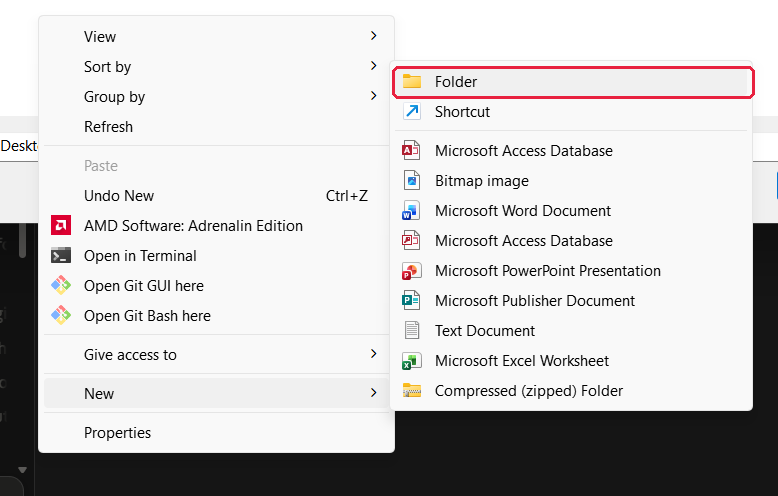
- Right-click, go to New, then Folder.
- Name the new folder AIOS.
- Click Select Folder.
- Check two things before you move on. The folder must have a blue checkmark next to it, and the star must be blue. The star is what makes it the default.
Show me how
Click Project or folder under the chat box. It sits there the whole time you are in Cowork.
Click Add a folder.

Click your Desktop.

Right-click in the empty space, go to New, then Folder.
Name the new folder AIOS.

Click Select Folder.
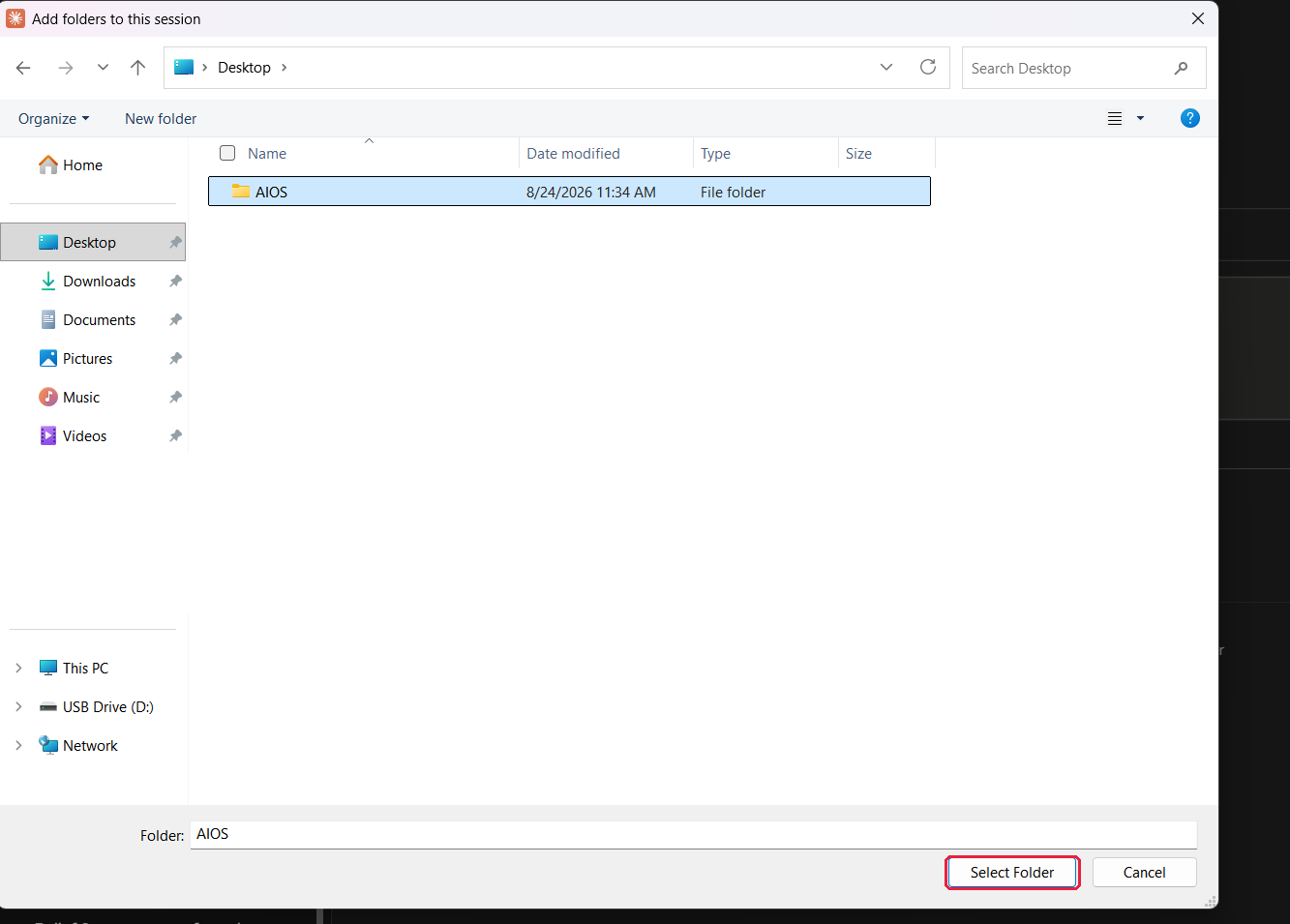
This is what it has to look like before you go on. The blue star makes it the default, and the blue checkmark means Claude can see it.

Add the AIOS starter folder to your project
- Download the AIOS folder below. Do not open or unzip it.
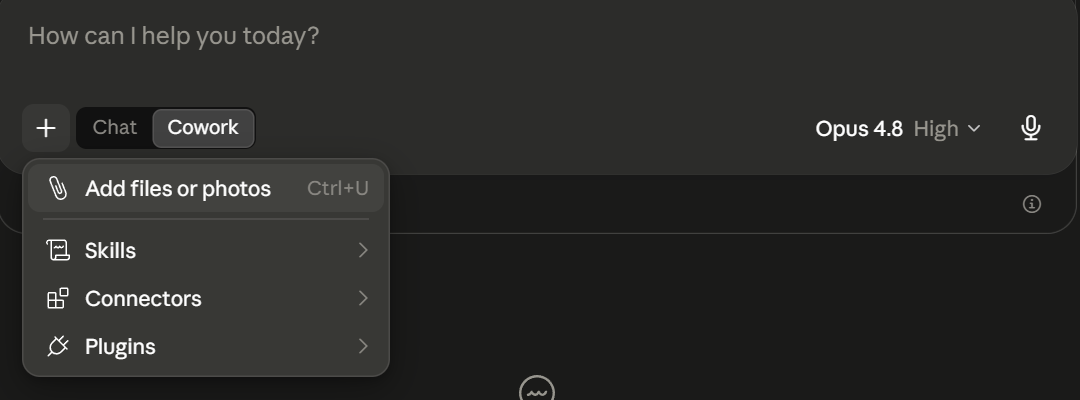
- Upload or drag and drop the downloaded folder into your project's chat box.
- Confirm the folder from step 2 still has the blue checkmark.
- Type set me up in the message box and hit send.
Type this
set me up
Show me how
Drag the file from your Downloads onto the Claude window and let go when the drop area lights up.

Prefer clicking? Use the + button and choose Add files or photos.
Claude says it only found four files
Rare, but easy to fix. Unzip the folder first, then add all six files, including the two inside the agents folder. Claude carries on from there.
Claude begins the installation
Have your completed Constitution available.
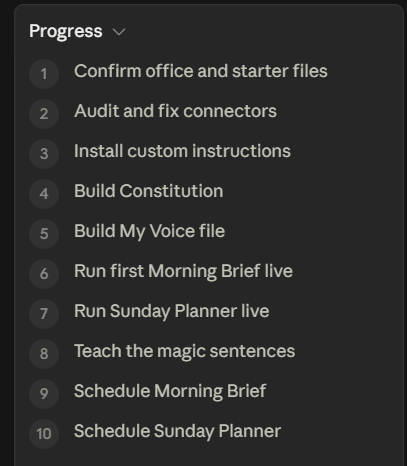
- Once you send set me up, a progress panel with about 10 steps appears in the top right of the project.
- Claude works through these steps for about 10 to 15 minutes. Do not close the app.
- Claude will ask for your completed Constitution. Upload or drag and drop your finished copy.
That last one is yours to do. Claude stops and waits until it has your Constitution.
Show me how
This is the progress panel, right after you hit send. All ten steps are still to run.
Partway through, Claude stops and asks for your Constitution. Upload it or drag it in.
Installation complete
What happens next?
Claude will run your first morning brief to confirm the setup was successful. Once complete, you'll see Morning Brief and Sunday Planner appear in the left-side panel. This confirms your AIOS is installed and running.
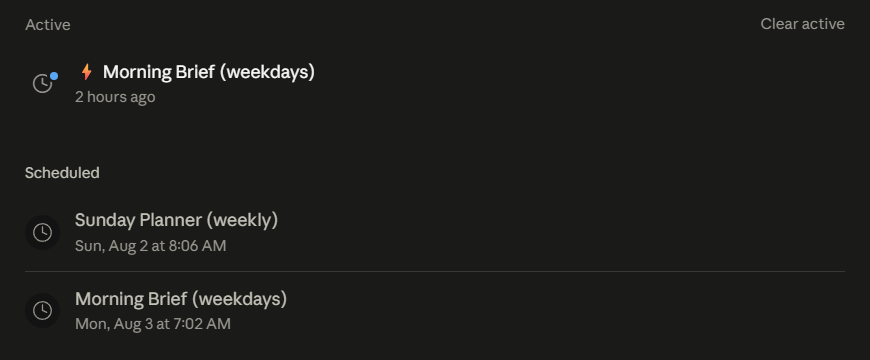
Controlling your AIOS
AIOS runs automatically once installed. Use any of the prompts below when you'd like more control.
- "Run my morning brief" · run it on demand, anytime
- "Run my Sunday planner" · map out your week on demand
- "Continue my setup" · picks up where you left off
- "Read COACH.md and help me" · when you're stuck
- "Pause my morning brief" · turns off the automatic brief
To use one, start a new chat in Claude, switch to Cowork, and paste the prompt in. Your AIOS folder is the default, that is the blue star from step 2, so Claude automatically references your project.
The five questions we get most.
Will it email my clients?No. It never sends anything to anyone.
It cannot send email. Your morning brief is prepared as a draft in your own Gmail and nothing leaves your account. When it writes something for you, it hands it to you. You send it.
Can anyone else see my stuff?No. Not CSC, not Compass, nobody.
Your Constitution, Voice and briefs live in a private Project inside your own Claude account. They are never shared and never used to teach any public AI. Delete them any time.
What if I get stuck?One sentence gets you unstuck.
Type "Read COACH.md and help me" and Claude walks you through it, checking the real thing instead of guessing. Interrupted? "Continue my setup" picks up exactly where you left off.
Do I need to be technical?No. If you can send an email, you can do this.
Every step is a button to click or a sentence to copy. The one personal step, your Constitution, is a plain Google Doc.
Can I turn it off?Yes, with one sentence, any time.
Type "pause my morning brief" or "pause my Sunday planner" and it stops. Nothing runs that you cannot switch off yourself.