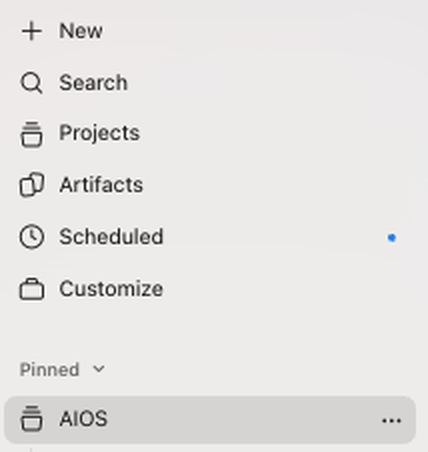
Goal: add AIOS to Claude. You do this in the Claude app.
1
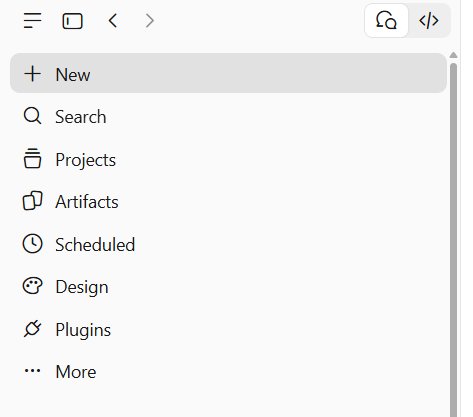
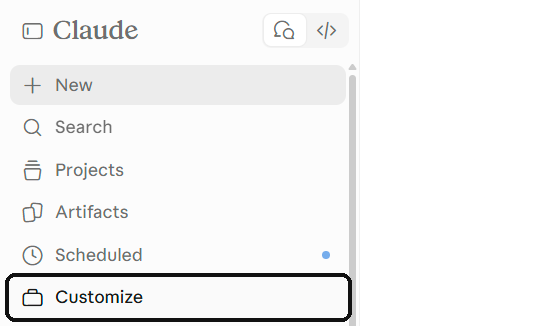
On the left side of Claude, which do you see?
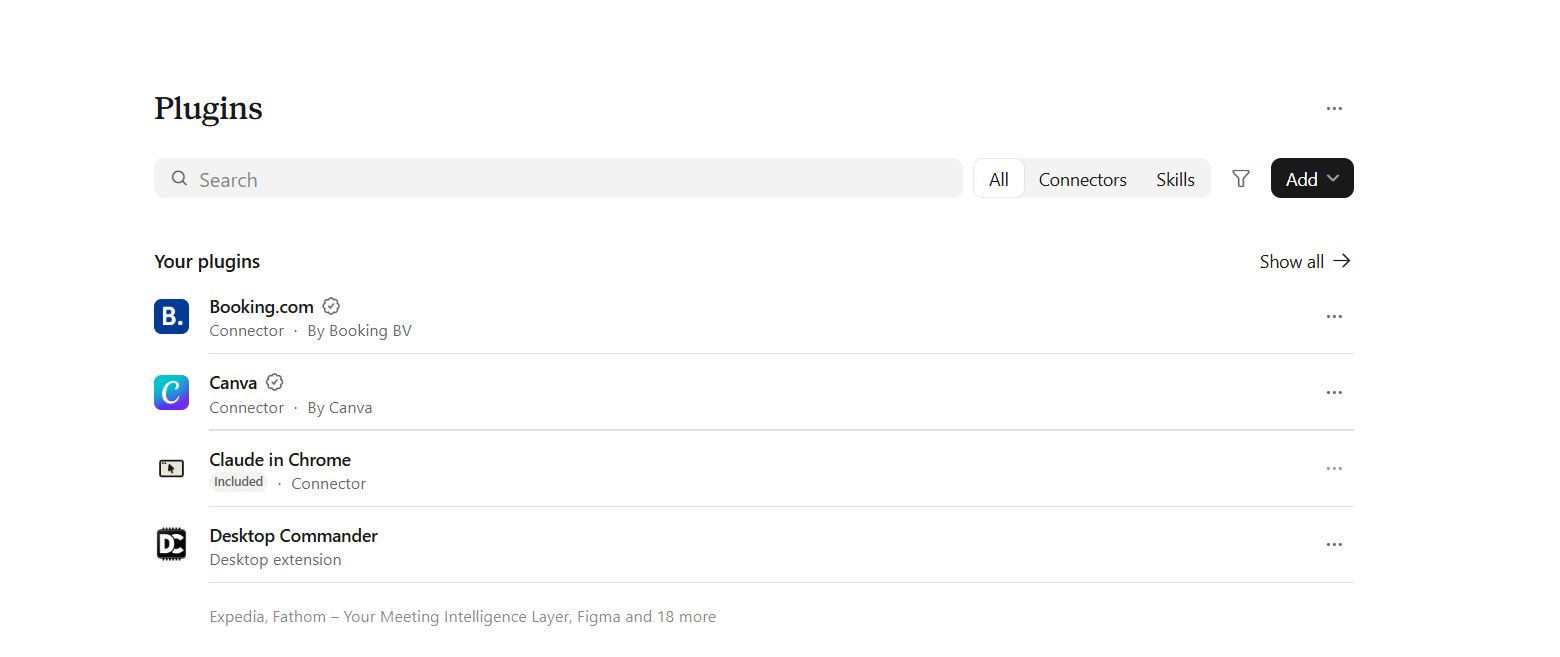
If you see Plugins
2
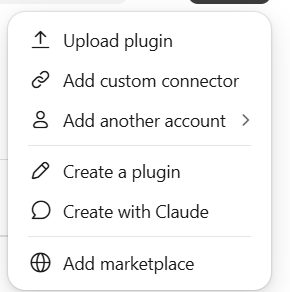
3
4
5
6
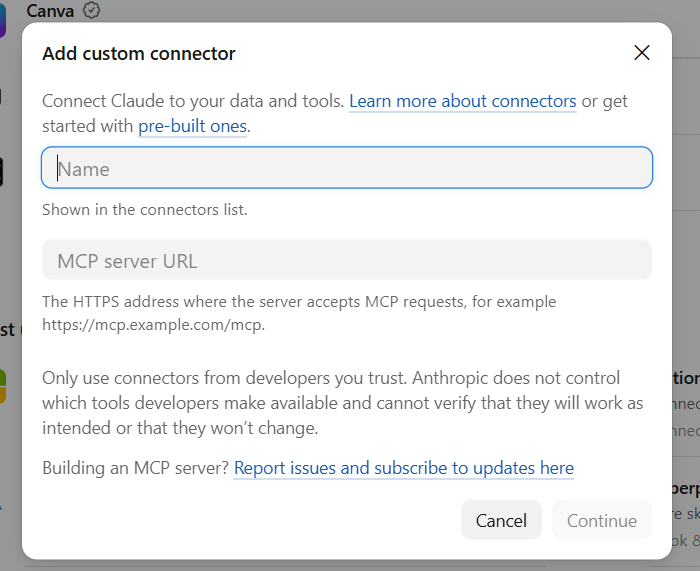
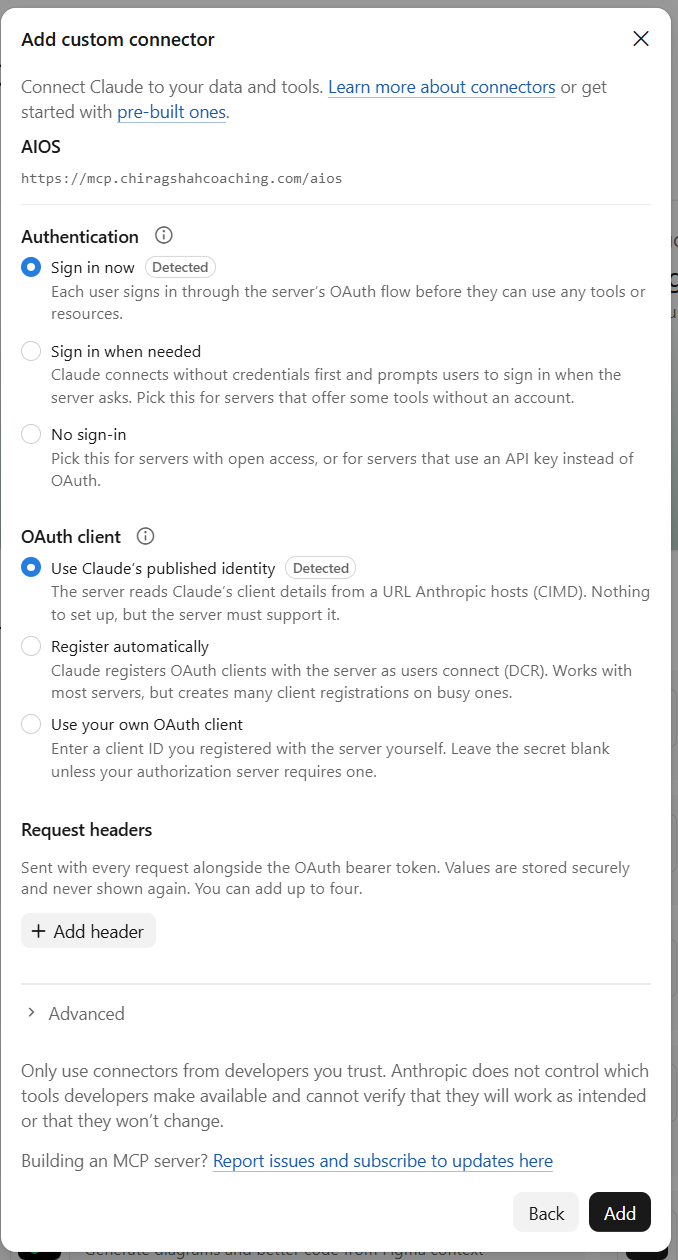
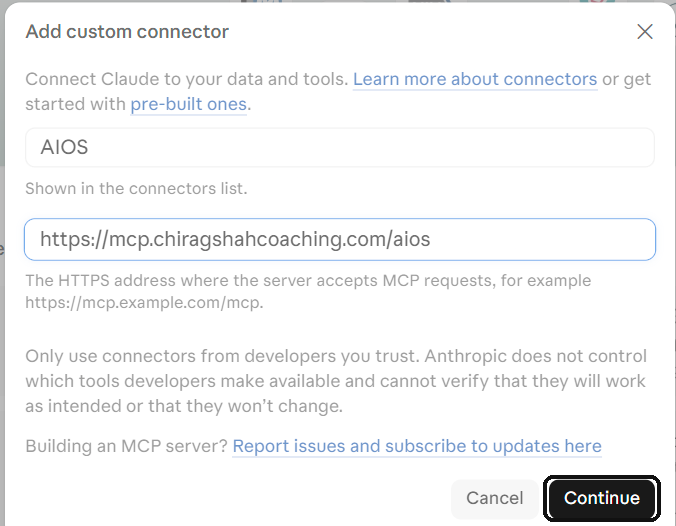
The URL
https://mcp.chiragshahcoaching.com/aios
Windows: press Ctrl + V. Mac: press Cmd + V.
7
8
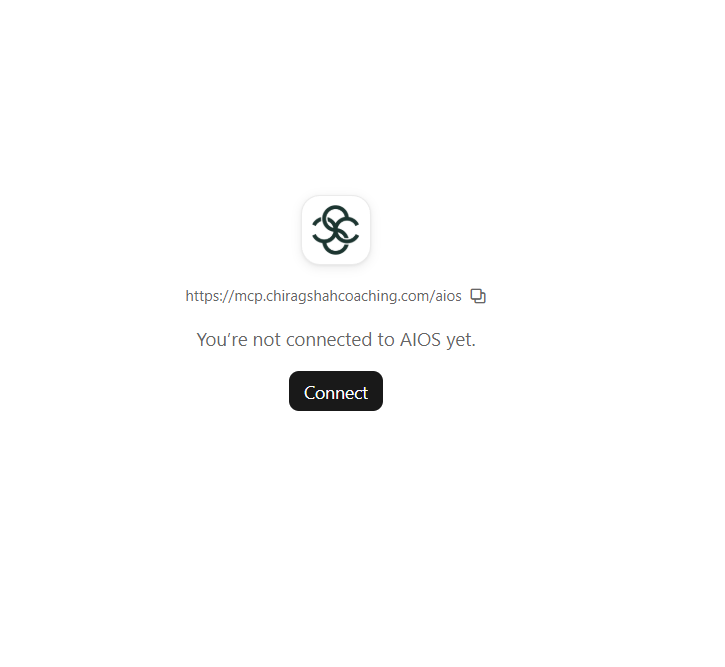
Add
This connects your four AI agents to Claude.
What AIOS does with your information
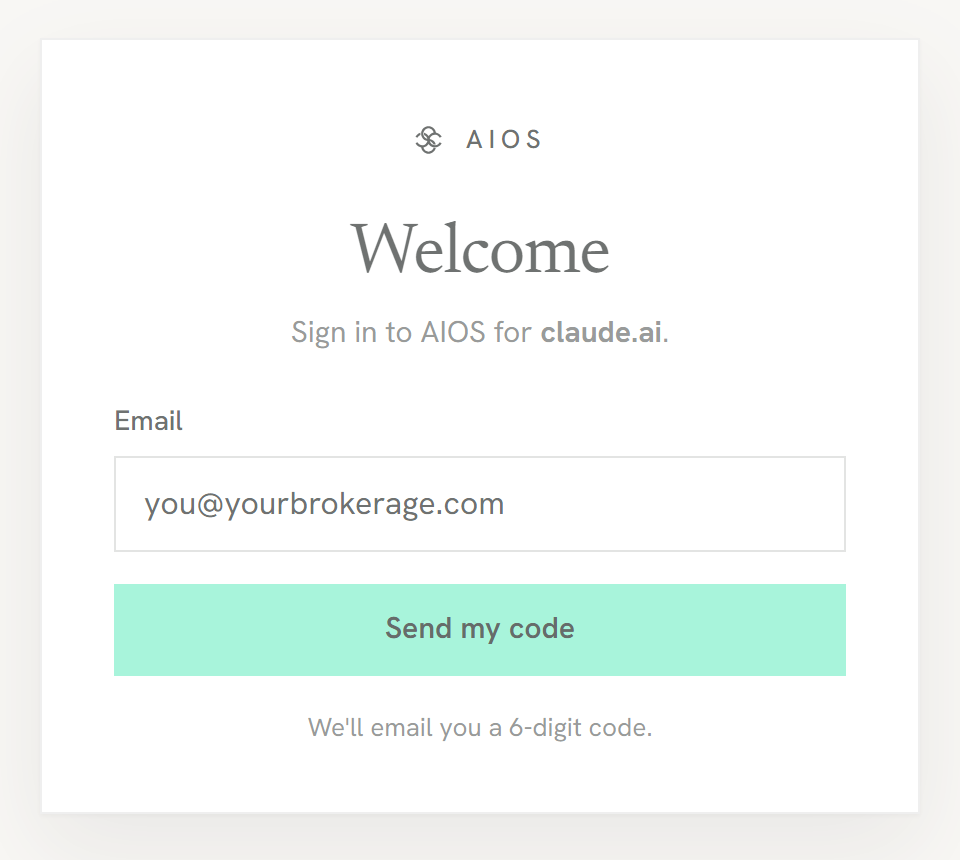
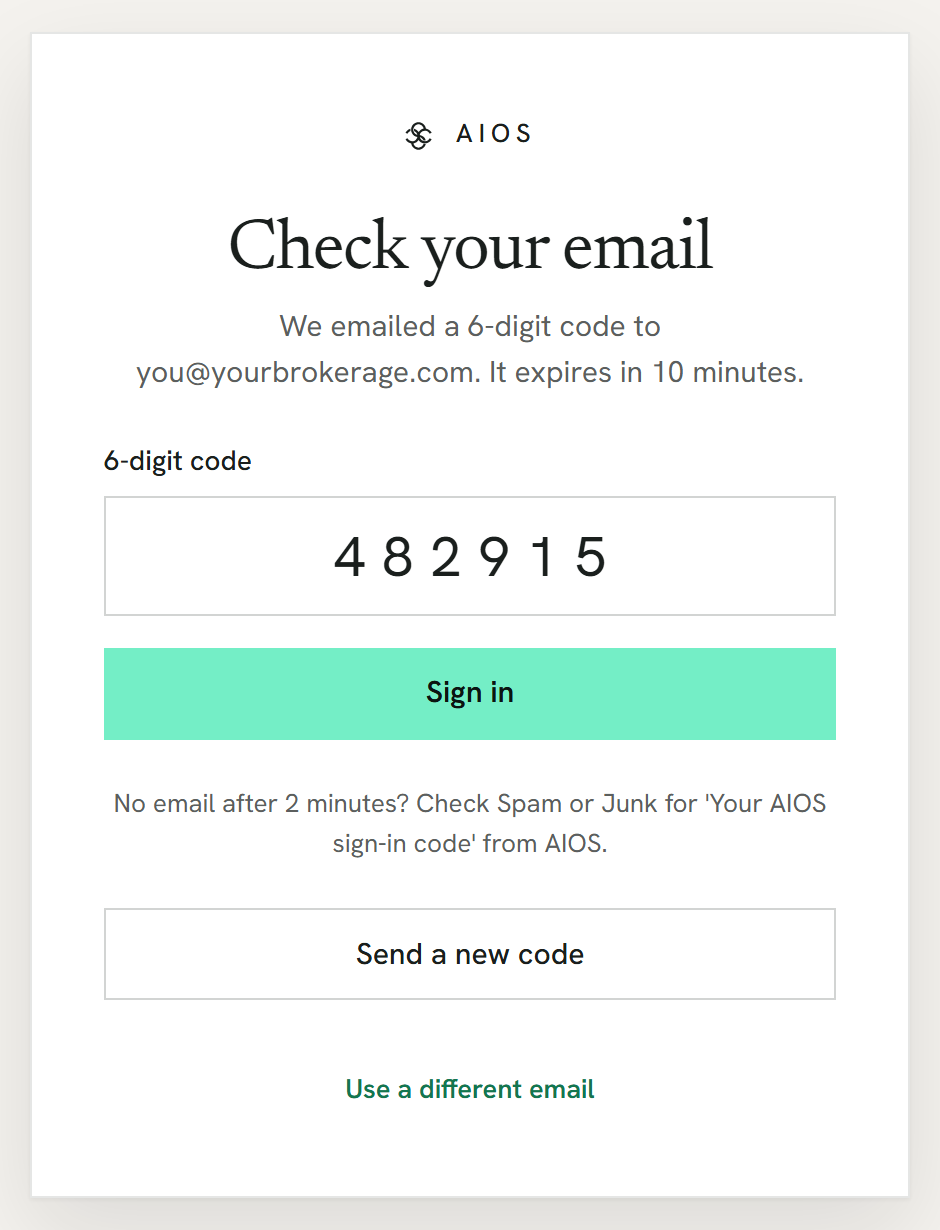
AIOS gives Claude CSC's real-estate workflow guides and checks you are a member. Your emails and client records stay in Claude and on your computer. CSC's server checks draft wording and doesn't keep your drafts or client records.
If the Claude window is narrow or split, the left side can look different. Make the window wider, or click the menu button at the top left. Then click Customize.
3
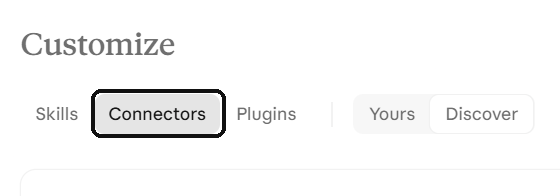
Stay on Yours. Do not click Discover.
4
5
6
The URL
https://mcp.chiragshahcoaching.com/aios
Windows: press Ctrl + V. Mac: press Cmd + V.
7
8
Add
This connects your four AI agents to Claude.
What AIOS does with your information
AIOS gives Claude CSC's real-estate workflow guides and checks you are a member. Your emails and client records stay in Claude and on your computer. CSC's server checks draft wording and doesn't keep your drafts or client records.
Goal: start AIOS setup. Then AIOS guides you in the chat. You make two things: a Project called AIOS in Claude, where you chat with AIOS, and a folder called AIOS on your computer, where AIOS saves your records. You do this in the Claude app, except making the folder.
Used the old AIOS? Rename your old Project to AIOS (old) first. Renaming deletes nothing.
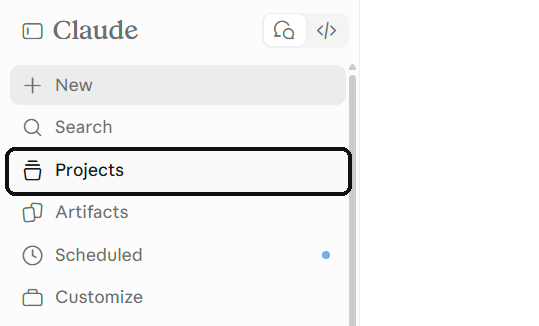
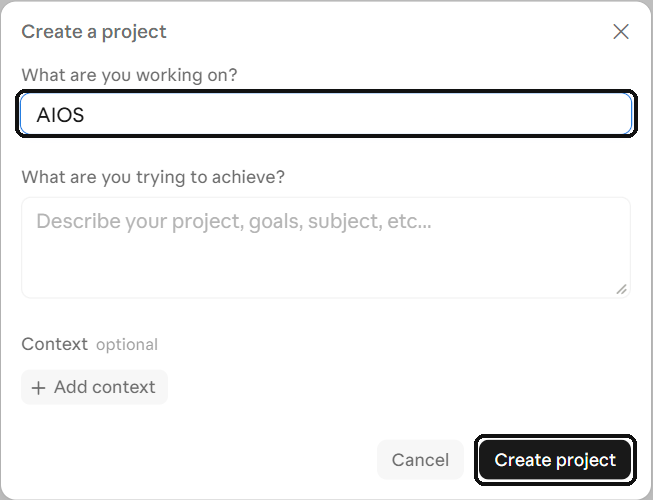
A. Make your AIOS Project
1
2
3
Leave What are you trying to achieve? empty.
4
Your AIOS Project opens.
5
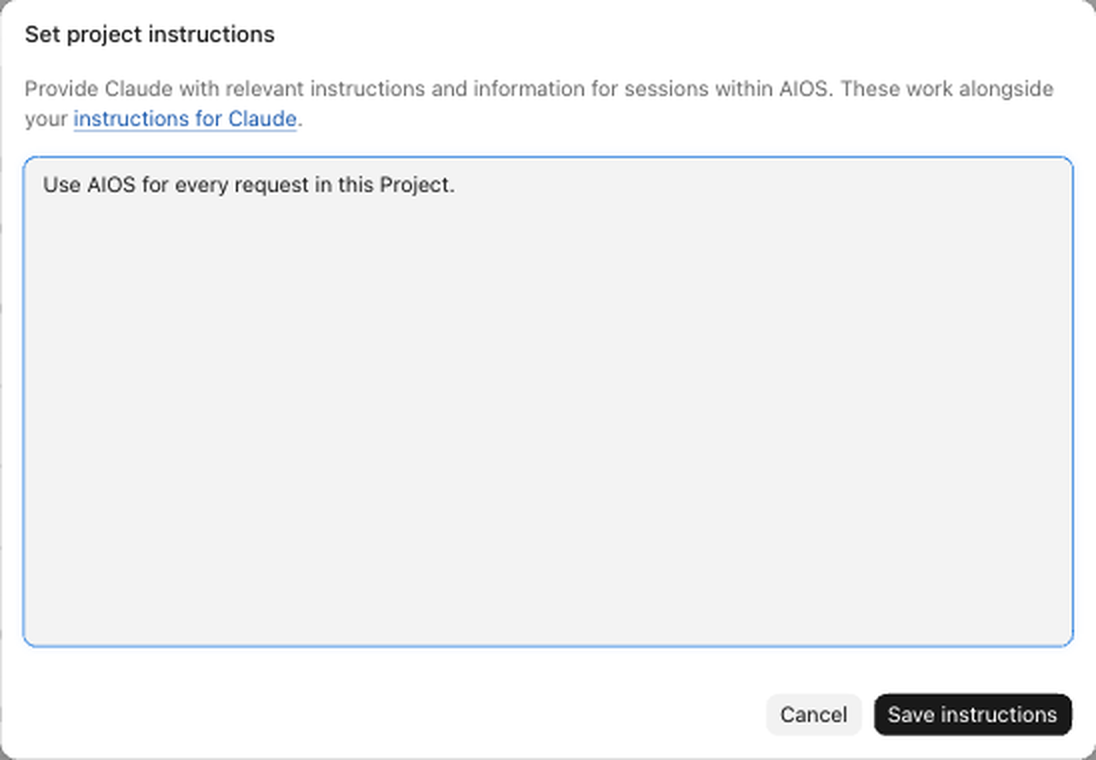
Words to paste
Use AIOS for every request in this Project.
Windows: press Ctrl + V. Mac: press Cmd + V.
This makes sure Claude uses AIOS when you ask for something in this Project.
B. Make your AIOS folder
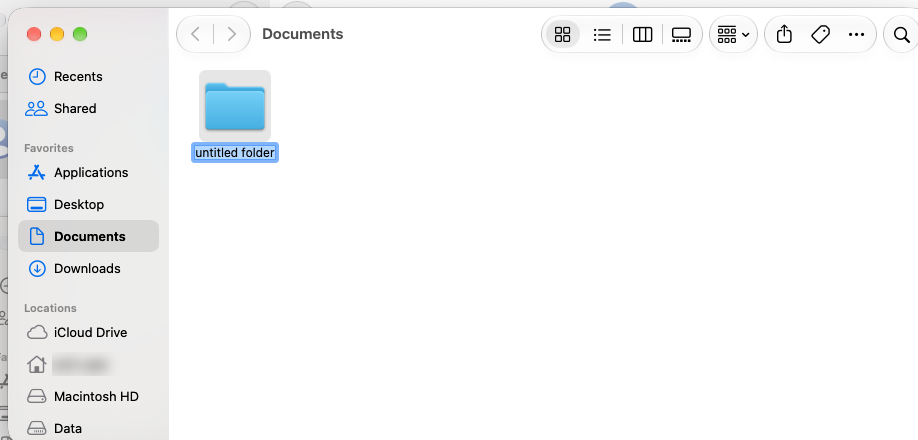
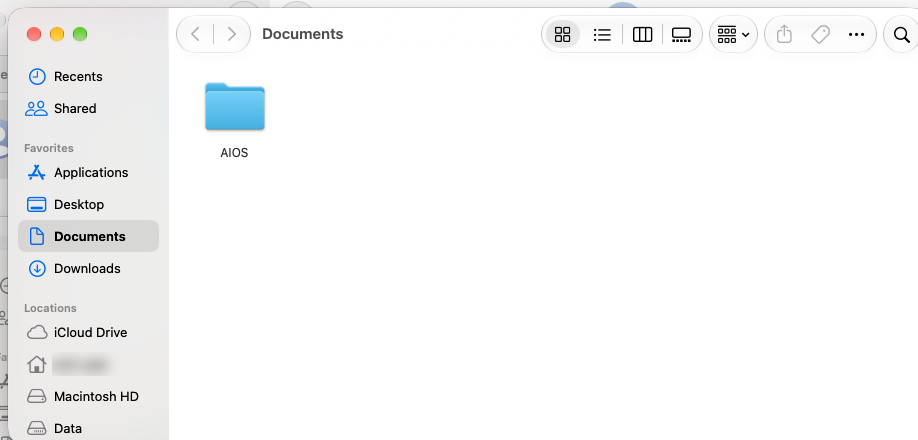
Make your AIOS folder in Documents
AIOS saves your records in this folder, on your computer. You make it, then link it to your AIOS Project.
Windows
1
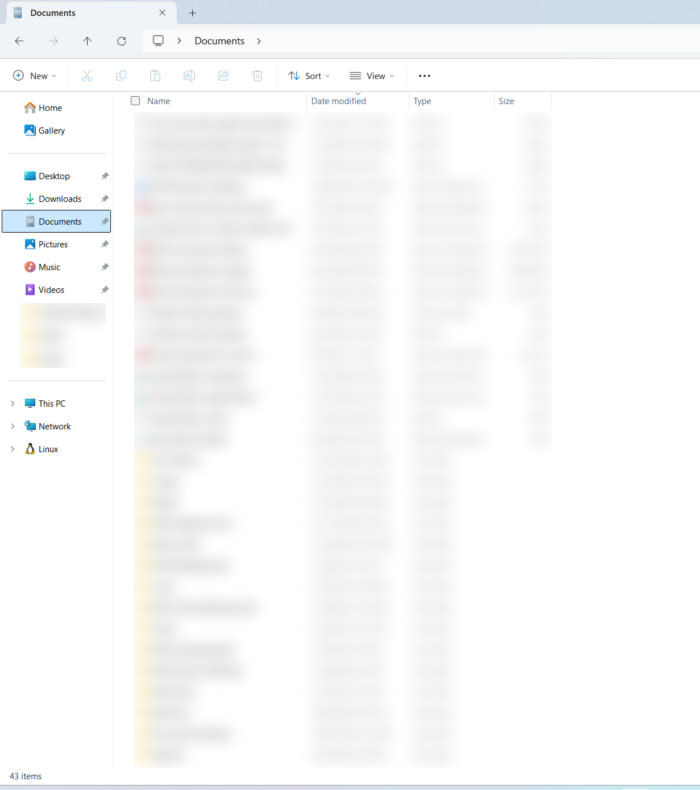
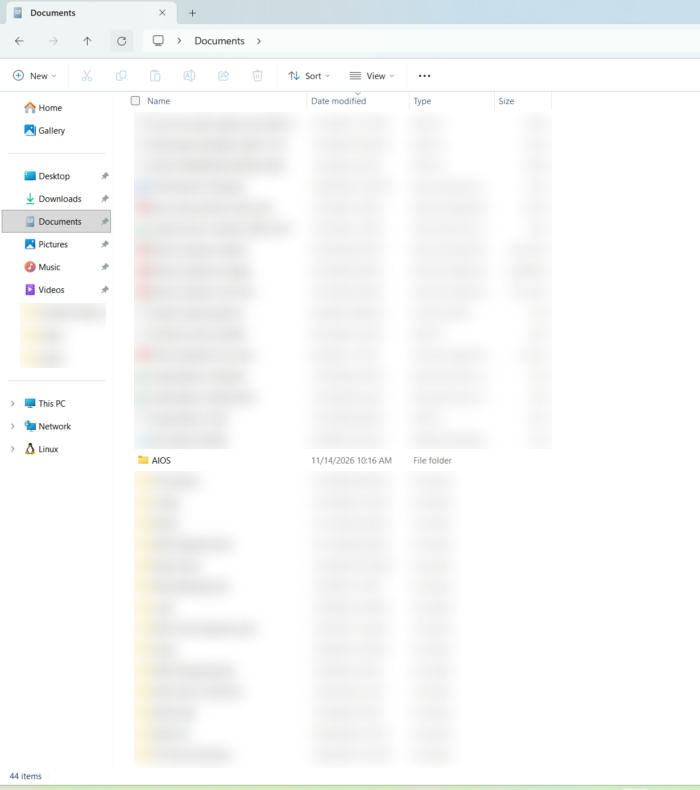
Open File Explorer.
2
Click Documents on the left.
3
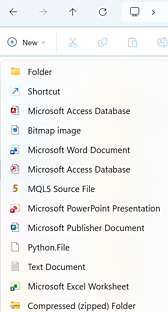
Click New (top left), then Folder.
4
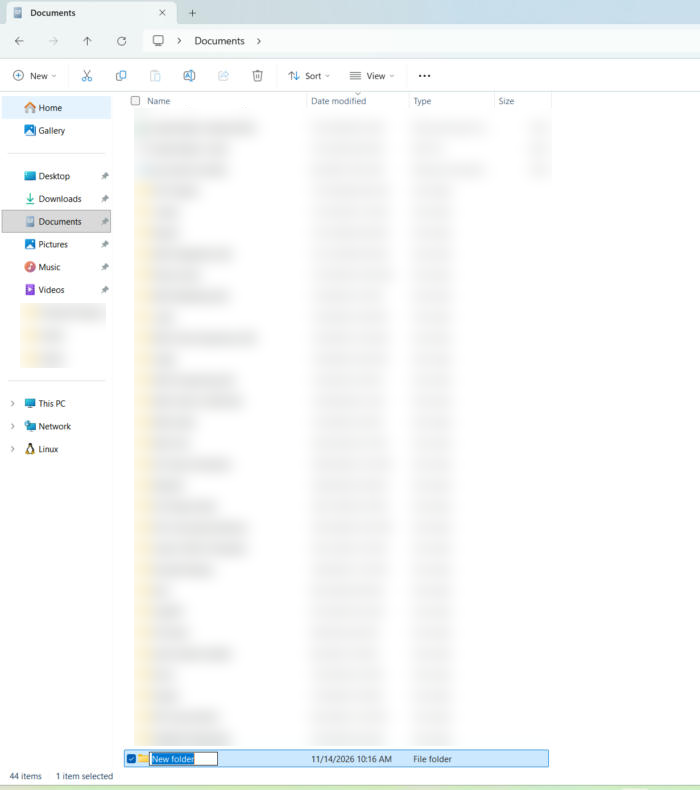
Type AIOS.
5
Press Enter.You see the AIOS folder in Documents.
Reminder: it is in your Documents folder.
6
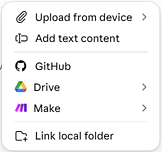
Go back to the Claude app. In your AIOS Project, find Context on the right. Click Add. Click Link local folder.
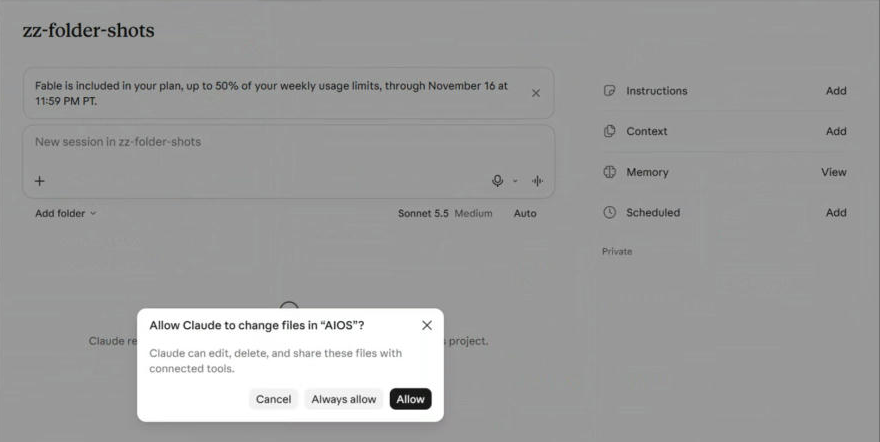
A box will ask to let Claude change files in “AIOS”. Click Always allow, not Allow.
7
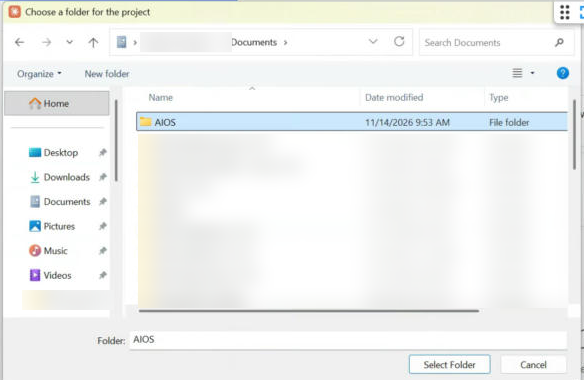
In the window that opens, click Documents. Click AIOS. Click Select Folder.
8
A box asks: Allow Claude to change files in “AIOS”? Click Always allow, so it doesn't ask again.Context now says 1 linked folder.
Need help finding it again?
Open File Explorer. Click Documents on the left. Open the AIOS folder.
Mac
1
Open Finder.
2
Click Documents on the left.
3
In the menu bar at the very top of your screen, click File.
Screenshot not captured yetThe menu bar at the top of the screen, with File and New Folder marked
4
Click New Folder.
5
Type AIOS.
6
Press Return.
Reminder: it is in your Documents folder.
7
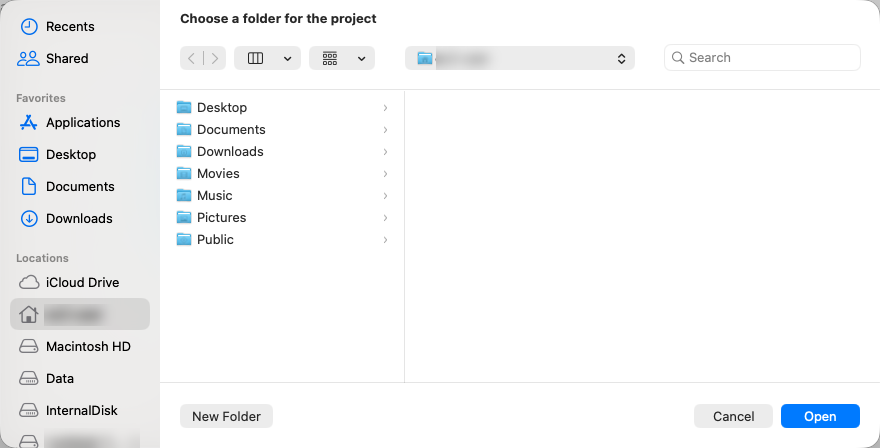
Go back to the Claude app. In your AIOS Project, find Context on the right. Click Add. Click Link local folder.
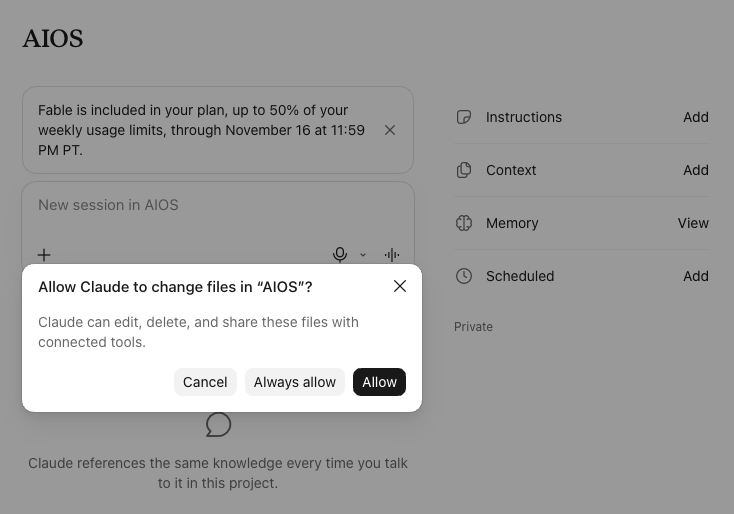
A box will ask to let Claude change files in “AIOS”. Click Always allow, not Allow.
8
In the window that opens, click Documents. Click AIOS. Click Open.
9
A box asks: Allow Claude to change files in “AIOS”? Click Always allow, so it doesn't ask again.Context now says 1 linked folder.
Need help finding it again?
Open Finder. Click Documents on the left. Open the AIOS folder.
C. Start setup
If Claude shows terms, click Accept.
1
Already see Auto? Skip this step.When Claude asks to use AIOS, click Always allow.Why Auto mode
In Manual mode, Claude asks before it uses each AIOS tool. In Auto mode, Claude does not ask each time. Claude still blocks actions it flags as risky.
2
New to AIOS
Click in the message box. Paste Set up AIOS.
Words to paste
Set up AIOS
Windows: press Ctrl + V. Mac: press Cmd + V.
Used the old AIOS
Click in the message box. Type Upgrade my AIOS.
Your plan, voice, contacts, deals and promises come with you. Nothing is deleted.
Want help? Email your Coaching Success Manager.
3
Claude may show a box that says “Allow Claude to access this folder?”. Tick Don't ask again for this folder on this device, then click Allow.
When Part 4 is done
AIOS says hello. It names your four agents.
D. Finish setup in the chat with AIOS
Setup is not done yet. AIOS now asks you questions in your AIOS Project, one at a time. It takes about 40 to 60 minutes.
Answer each question. Do each step AIOS gives you, such as clicking Schedule or Allow, then typing done.
Keep going until AIOS says Setup is finished.
Need to stop? Open your AIOS Project later and type finish my AIOS setup. AIOS keeps your progress.
From here, everything happens in your AIOS chat in Claude.
Where to chat with AIOS
From now on, start every AIOS chat in your AIOS Project. Your AIOS Project stays in the left sidebar of Claude. Click AIOS to open it. Your earlier chats are under it. Type in the message box to start a new chat.

 Words to pasteUse AIOS for every request in this Project.